
Okay, let’s be honest for a second. The base game of Sims 4 is sweet, but it’s the custom content and mods that turn your game into a tiny dreamy world that actually feels like yours.
That messy-bun hairstyle you’ve been eyeing on Pinterest? CC.
That cottagecore kitchen with the worn wooden counters? CC.
That mod that finally fixes your Sim’s chaotic toddler tantrums? Mod magic.
If you’ve been wanting to learn how to install Sims 4 CC and mods but felt a little intimidated, take a breath. You’re in the right cozy corner of the internet. This guide is slow, simple, and written like I’m sitting next to you with tea, walking you through it step by step.
No tech jargon. No overwhelm. Just a calm little tutorial so you can get back to building your dream Sims life.
Before You Start: A Few Cozy Basics
Before we dive in, let’s get comfy with some quick definitions so nothing feels confusing later.
- CC (Custom Content) is anything that adds new items to your game, like hair, clothes, furniture, or skin details. It’s purely decorative and doesn’t change gameplay.
- Mods are different. They actually change how the game works, like adjusting Sim behavior, unlocking more career options, or tweaking build mode rules.
- Both CC and mods live in the same folder, so the installation process is almost identical for each.
Once you understand that distinction, everything else clicks into place pretty quickly.
Step 1: Turn On “Script Mods” and “Custom Content” in Your Game Settings
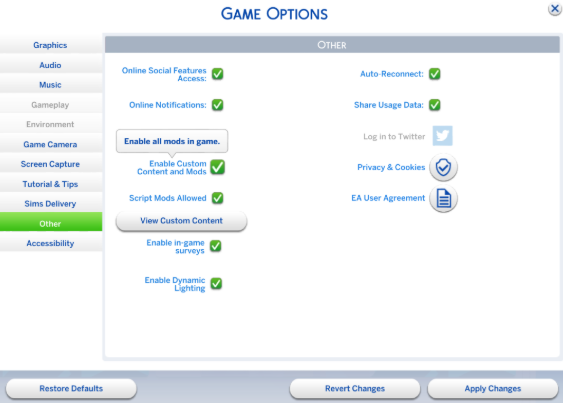
This is the very first thing to do, and it’s easy to miss.
- Open The Sims 4
- Click the menu icon in the top right corner
- Go to Game Options
- Click the Other tab
- Check the boxes for Enable Custom Content and Mods and Script Mods Allowed
- Restart your game completely
Think of this step like unlocking the front door before guests arrive. Without it, your CC and mods simply won’t show up, no matter how perfectly you install them.
Step 2: Find Your Mods Folder
Your computer already has a special folder waiting for your CC and mods. You just need to find it.
On Windows, the path usually looks like this:
Documents > Electronic Arts > The Sims 4 > Mods
On Mac, it’s typically located here:
Documents > Electronic Arts > The Sims 4 > Mods
If you don’t see a Mods folder yet, don’t panic. It usually appears automatically the first time you launch the game after enabling CC and mods in your settings.
This folder is basically your Sims’ cozy little wardrobe and personality closet. Everything you add here is what shapes their world.
Step 3: Downloading CC and Mods Safely
This is where the fun really begins, but also where a little carefulness goes a long way.
Trusted Places to Find CC and Mods
- The Sims 4 Gallery (in-game, completely safe)
- Patreon creators with verified, well-reviewed pages
- Long-established CC sites with active comment sections
- Creator Discord servers where people share feedback
A Gentle Safety Reminder

Always download from creators with visible reviews or community trust. If a site feels sketchy, cluttered with ads, or oddly aggressive with pop-ups, it’s okay to close the tab and walk away. Your peace of mind matters more than one hairstyle.
Step 4: Installing Your CC and Mods (The Easy Part)
Once you’ve downloaded a file, here’s what to do.
- Locate the downloaded file, usually in your Downloads folder
- If it’s a .zip or .rar file, extract it first
- Look for files ending in .package or .ts4script
- Drag those files directly into your Mods folder
- Restart the game
That’s genuinely it. No complicated installer, no confusing settings. Just drag, drop, and restart.
A Soft Tip for Staying Organized
Create subfolders inside your Mods folder, like “Hair,” “Build Mode,” “Gameplay Mods,” and “CAS Clothing.” It keeps everything tidy and makes your game feel less like clutter and more like a curated little world.
Step 5: Avoiding the Dreaded Pink Flashing Sims
If you ever see a Sim glitching with bright pink and black checkers, don’t worry, it’s not broken. It just means a CC file is either missing a mesh or conflicting with another file.
Here’s how to gently fix it:
- Make sure mesh and recolor files are both installed if required
- Remove any duplicate or outdated CC
- Check the creator’s page for compatibility notes
- Use the 50/50 method (move half your CC out, test, then narrow it down) if you can’t find the culprit
It sounds intimidating, but it’s really just a calm process of elimination.
Step 6: Keep Things Running Smoothly
A few cozy habits that keep your game stable long term.
- Update mods after every Sims 4 patch
- Delete CC you no longer use
- Avoid downloading too many script mods at once
- Back up your Mods folder occasionally, just in case
Your game will thank you with smoother loading screens and fewer random crashes.
Conclusion
And that’s it, friend. You officially know how to install Sims 4 CC and mods, and honestly, it gets easier every single time you do it.
There’s something so soothing about building a Sims world that finally looks and feels like the one in your head. The right hair swatch, the perfect cozy interior CC, a mod that makes your Sims’ lives a little more realistic. It all adds up to a game that feels like home.
So make some tea, open your Mods folder, and let your creativity wander. Your dream save file is waiting.
FAQ
Do I need both .package and .ts4script files for mods to work?
Not always, but many gameplay mods require both. If a mod isn’t working, check the creator’s instructions to confirm.
Can I put CC in folders inside the Mods folder?
Yes. The game reads subfolders just fine, as long as they’re inside the main Mods folder.
Why isn’t my CC showing up in Create-a-Sim?
Usually it’s because Custom Content wasn’t enabled in your game settings, or the files weren’t placed directly in the Mods folder.
Is it safe to download Sims 4 CC?
Yes, as long as you stick to trusted creators and established sites. Avoid shady download links or sites with excessive ads.
How many mods is too many?
There’s no strict number, but too many script mods can slow down loading times. Keep an eye on performance and remove anything you no longer use.